AI Pricing
The Price Guide Template lets partners get AI suggested retail prices for a vehicle's parts, adjust them in a spreadsheet, and then calculate trade, broker and eBay prices in one go.
Step 1: Open the Vehicle
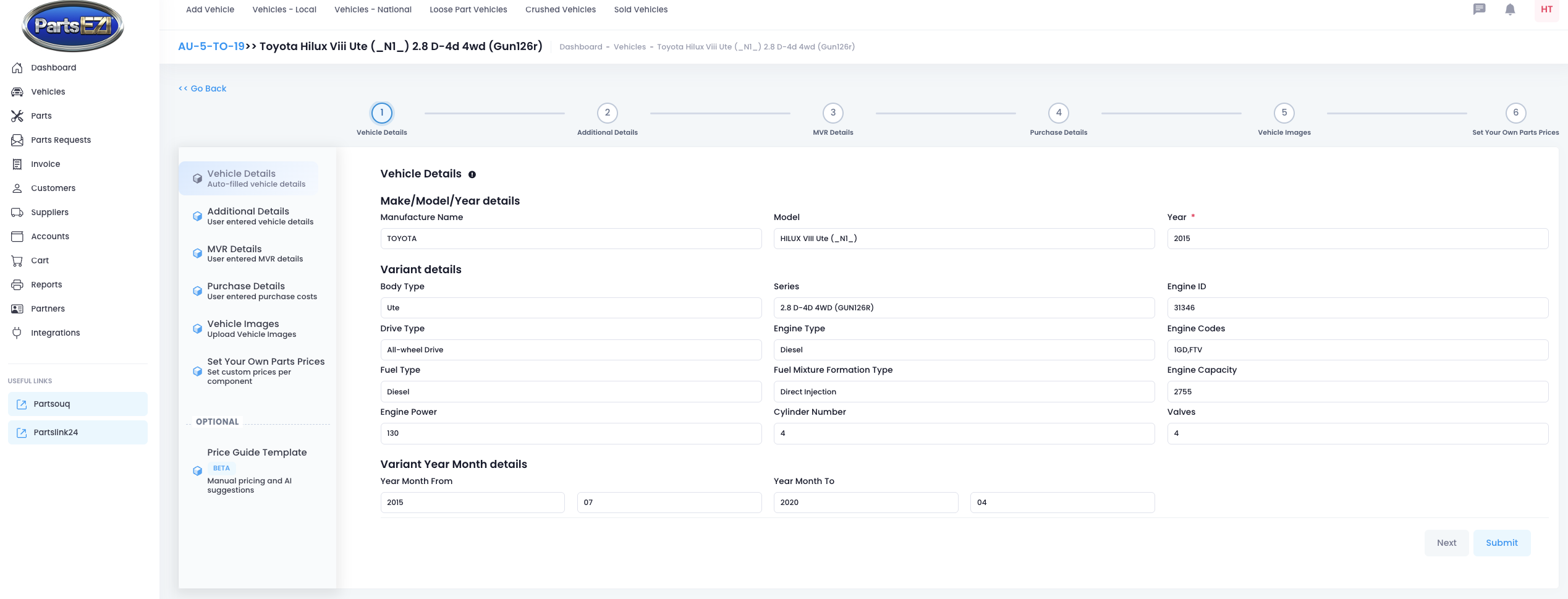
Go to Vehicles - Local and select the vehicle you want to price. This opens the vehicle's details.
Step 2: Open the Price Guide Template
In the vehicle's side menu, under Optional, select Price Guide Template.
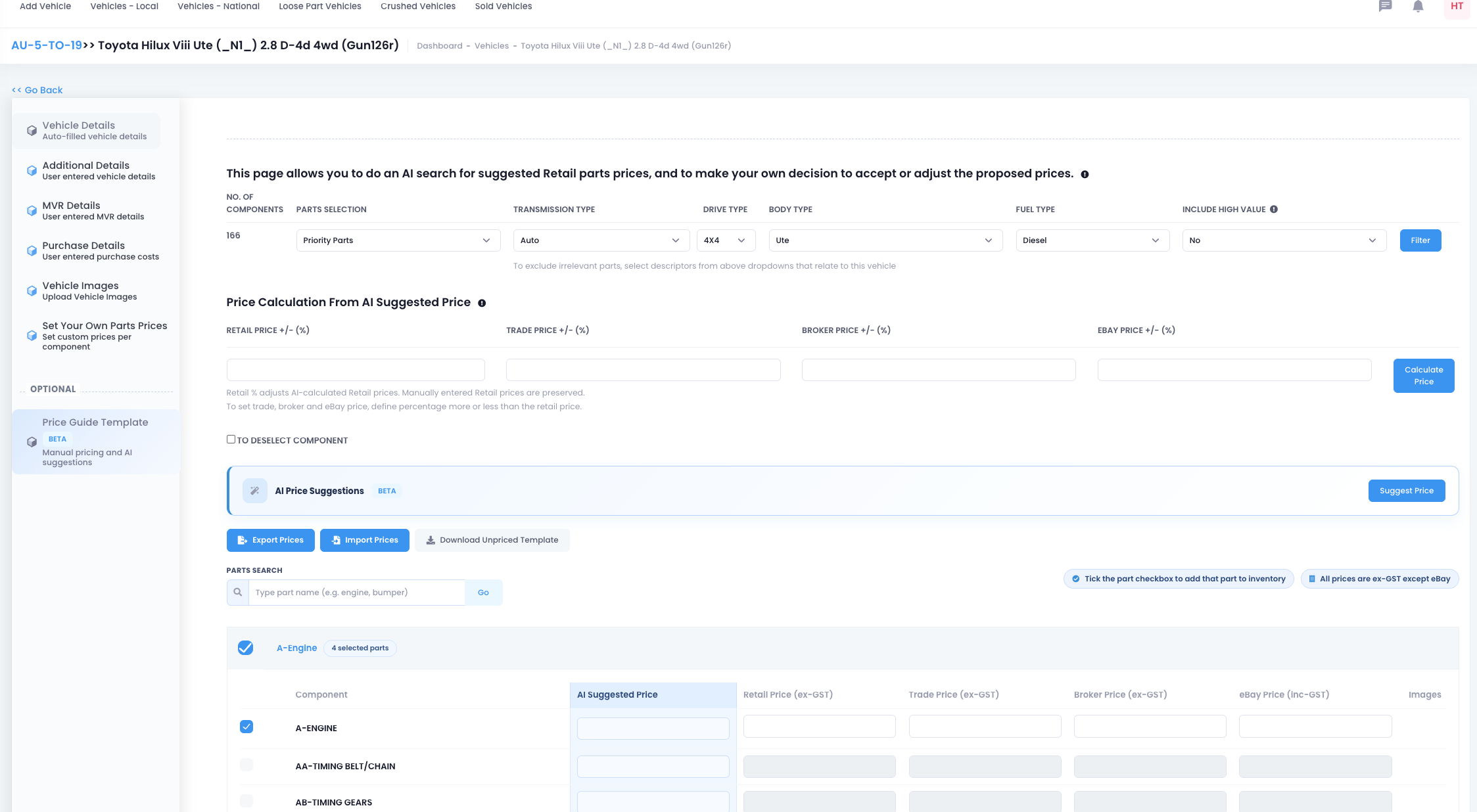
Step 3: Filter the Components
Use the dropdowns to exclude parts that don't apply to this vehicle:
- Parts Selection - for example, Priority Parts
- Transmission Type, Drive Type, Body Type and Fuel Type
- Include High Value - whether to include high value parts
Press Filter. No. of Components shows how many components match.

Step 4: Get AI Price Suggestions
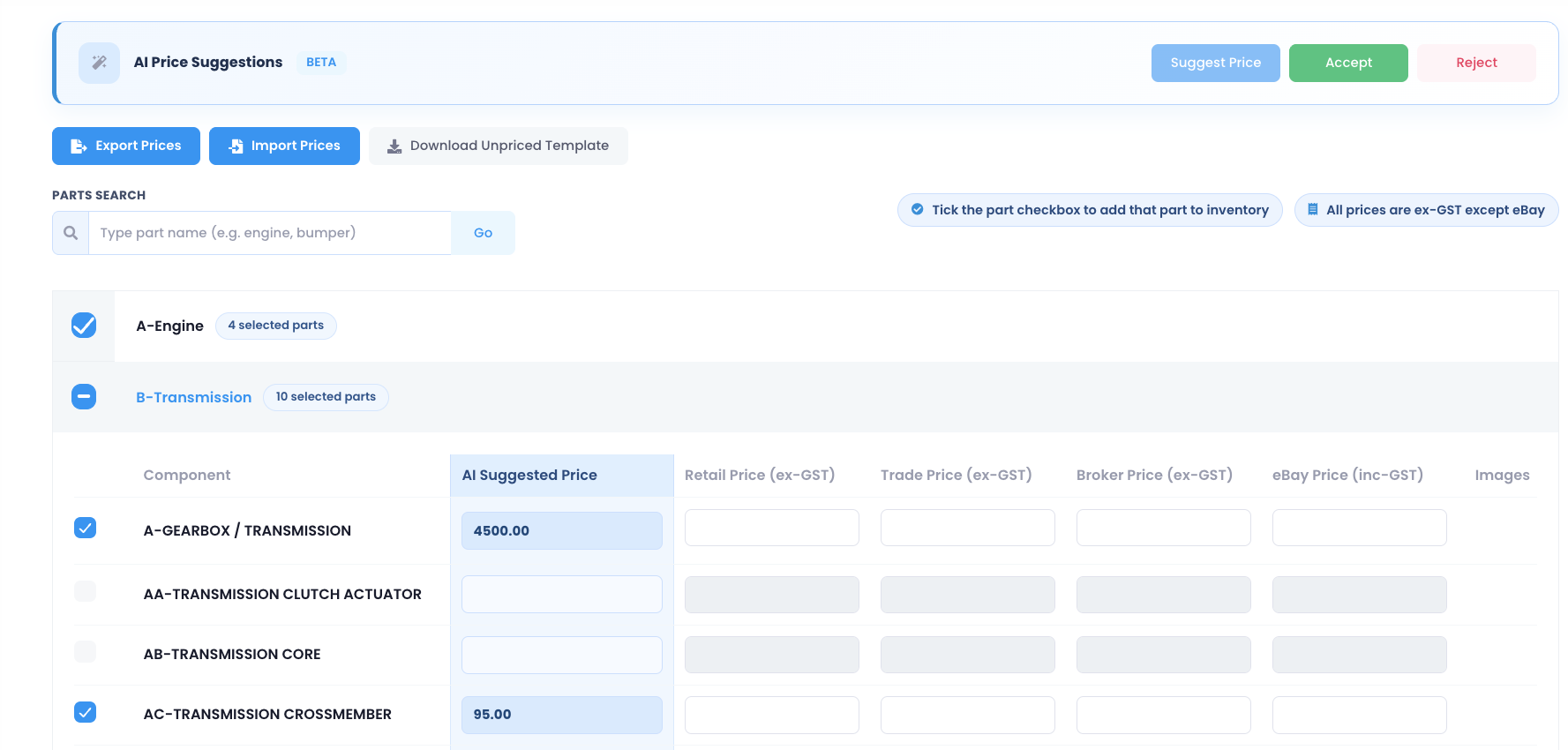
Press Suggest Price in the AI Price Suggestions section.

The AI Suggested Price column is filled in for each selected component. Press Accept to use the suggestions, or Reject to discard them.
Tick a part's checkbox to add that part to inventory. All prices are ex-GST except eBay.
Step 5: Set Your Prices in a Spreadsheet
Rather than typing every price on screen, you can export the prices to a spreadsheet, set them there, and import them back.
Export the Prices
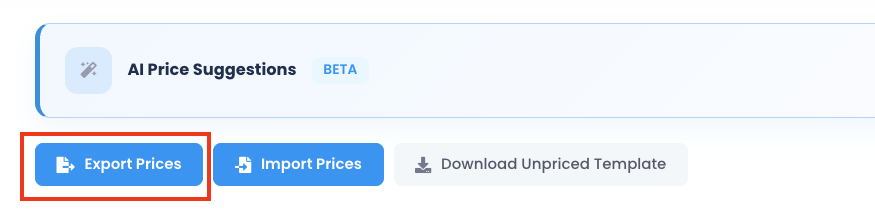
Press Export Prices.
Apply Automatic Component Price Calculations
Before the spreadsheet downloads, the Excel pricing options window appears. Tick Apply automatic component price calculations, then press Export Prices.
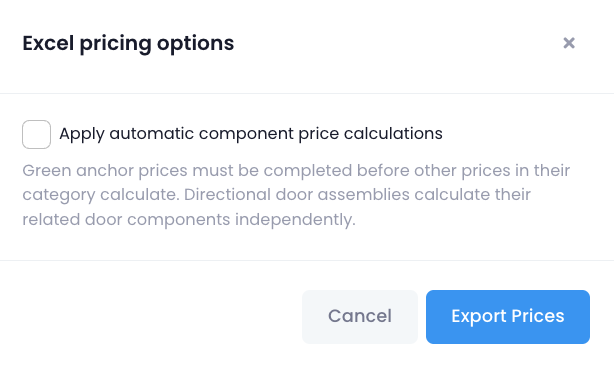
With this option ticked, the spreadsheet includes formulas so that you only need to price a few key parts. Everything else is calculated for you:
- Green rows are anchor parts. These are the main parts in each category, such as the Engine, Gearbox / Transmission, Front Bumper Bar or each Door. You enter these prices yourself.
- White rows are calculated. Each white row is priced from the green anchor rows it belongs to. Its price stays empty until at least one of its anchor prices is filled in.
- Doors are calculated separately. Each door's components are priced from that door only. For example, the Left Front Door Handle follows the Left Front Door price, while the Right Rear Door Handle follows the Right Rear Door price.
If you leave the option unticked, the spreadsheet has no formulas, so you'll need to enter every price yourself.
To see what an exported spreadsheet looks like, download the example spreadsheet.
Set Prices on the Green Rows
Open the downloaded spreadsheet and enter your retail prices in the Your retail price column for the green rows. The white rows in the same category update automatically.
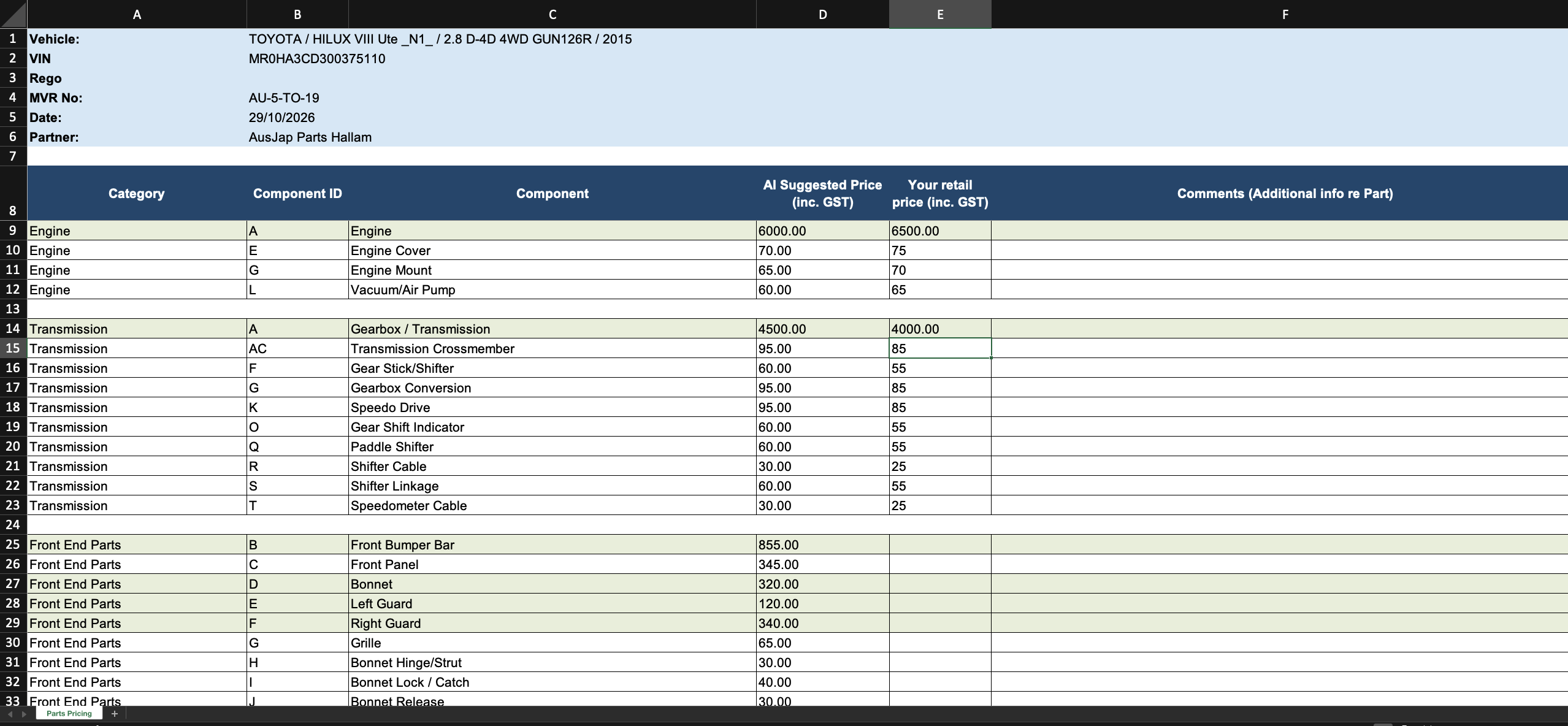
For example, in the spreadsheet above, entering a price for the Engine automatically calculates the Engine Cover, Engine Mount and Vacuum/Air Pump prices.
You can still type over any calculated price in a white row if you want a different price for that part.
Import the Prices
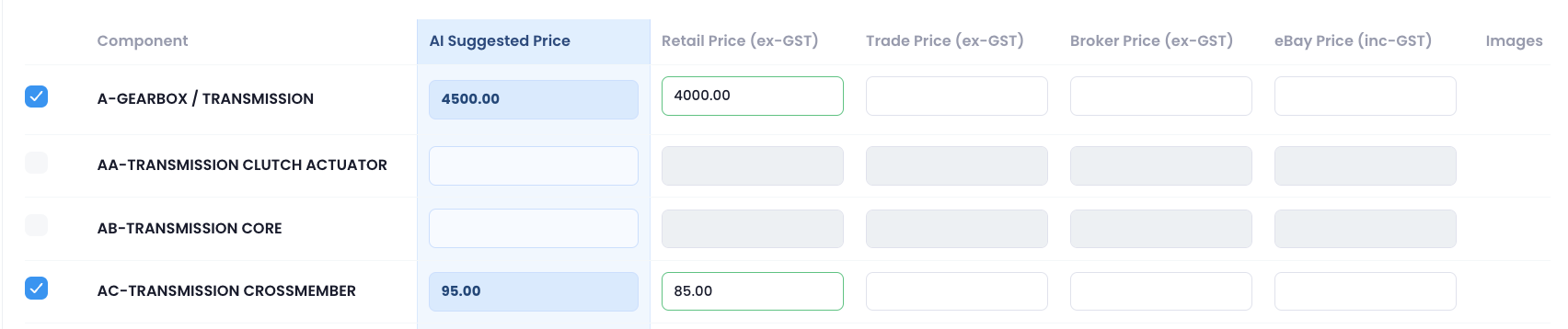
Back in the Price Guide Template, press Import Prices and select the spreadsheet you just saved.

The Retail Price column is filled in using the prices from the spreadsheet.
Step 6: Calculate Trade, Broker and eBay Prices
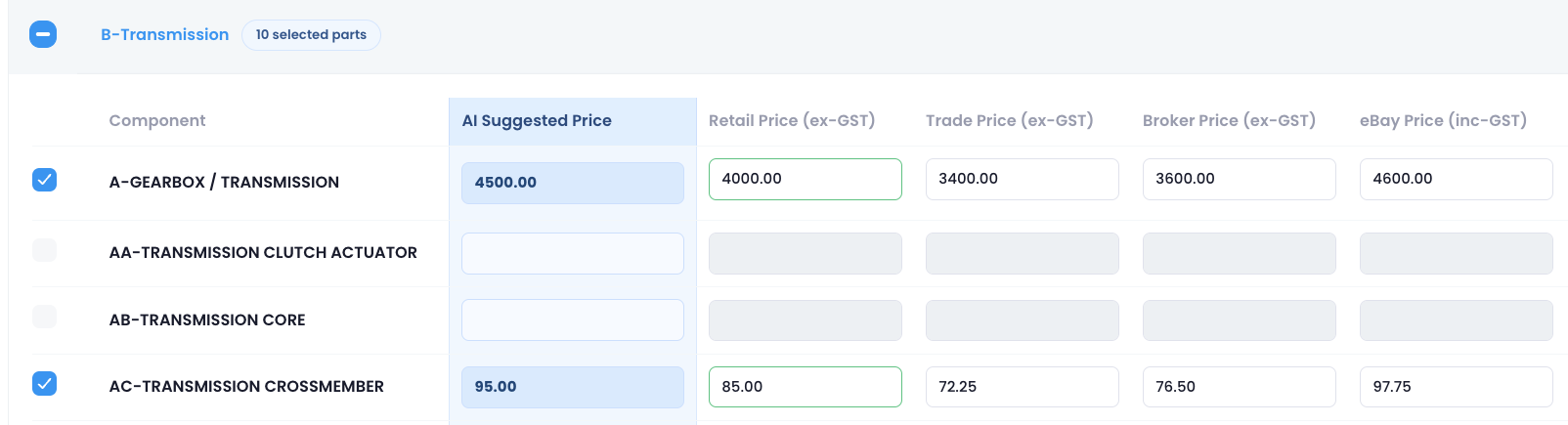
Use Price Calculation From AI Suggested Price to fill in the other price columns from your retail prices. Enter a percentage for each price type, then press Calculate Price.

- Retail Price +/- (%) adjusts the retail prices that came from the AI suggestions. Retail prices you entered manually or imported from the spreadsheet are kept as they are. Enter 0 to leave retail prices unchanged.
- Trade Price +/- (%), Broker Price +/- (%) and eBay Price +/- (%) set each price as a percentage more or less than the retail price. Use a negative number for a discount (for example, -15) and a positive number for a markup (for example, 15).
For example, with Retail 0, Trade -15, Broker -10 and eBay 15:
| Component | Retail | Trade (-15%) | Broker (-10%) | eBay (+15%) |
|---|---|---|---|---|
| Gearbox / Transmission | $4,000.00 | $3,400.00 | $3,600.00 | $4,600.00 |
| Transmission Crossmember | $85.00 | $72.25 | $76.50 | $97.75 |
Step 7: Submit Your Prices
Once you're happy with your prices, press the Submit button at the bottom of the page. The selected parts and their prices are added to your inventory.