Accounting & Marketplace Integrations
PartsEZI connects to the marketplaces and accounting systems you already use:
- Marketplaces: Shopify and eBay
- Accounting: Zoho Books, QuickBooks and Xero
Once connected, you can export your vehicles' parts to these platforms in a few clicks, and your stock stays in sync between PartsEZI and every connected platform.
Step 1: Connect Your Integrations
Open Integrations from the PartsEZI side menu. Each platform shows a badge with its status:
- Contact admin to enable - This integration hasn't been enabled for your account yet. Contact PartsEZI to enable it.
- Ready - The integration is enabled and ready to connect.
- Connected - Your account is connected.
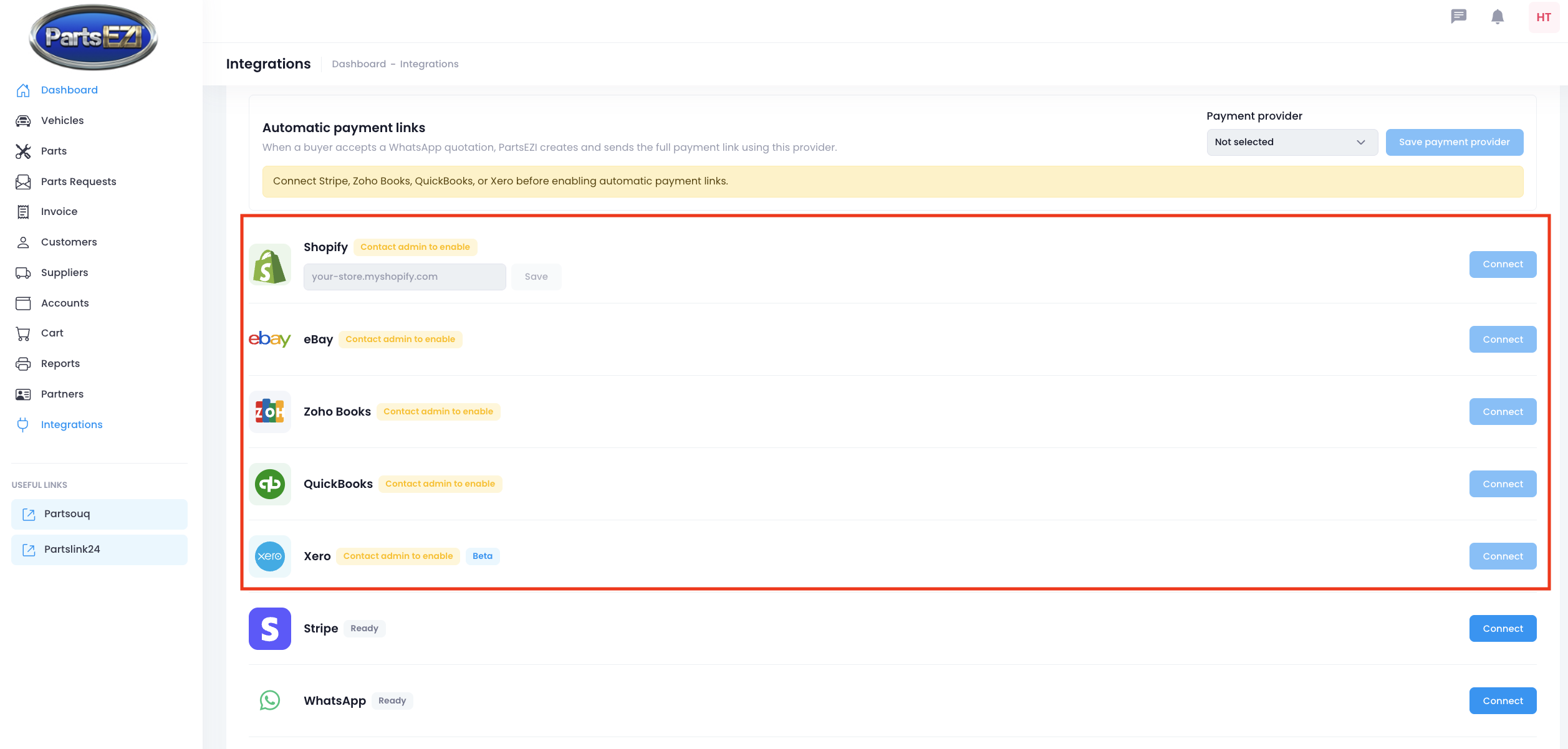
To connect a platform:
- Shopify only: enter your store address (for example,
your-store.myshopify.com) and press Save first. - Press Connect. A new tab opens where you log in to the platform and approve the connection to PartsEZI.
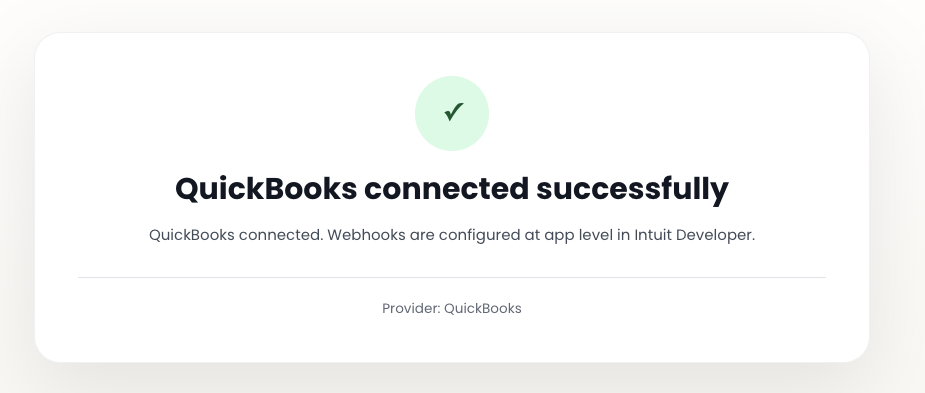
- Once the connection is approved, you'll see a confirmation page. You can close this tab and return to the PartsEZI Integrations page.
Zoho Books: if you have more than one organisation, you'll be asked to choose which one to connect.
Xero (Beta): after connecting, you'll be taken back to the Integrations page to choose the Xero accounts PartsEZI should use. You need to complete this before you can export to Xero.
If a connection stops working, press Reconnect to connect it again.
Step 2: Export Your Vehicles
Go to Vehicles - Local and press Export to Integrations.

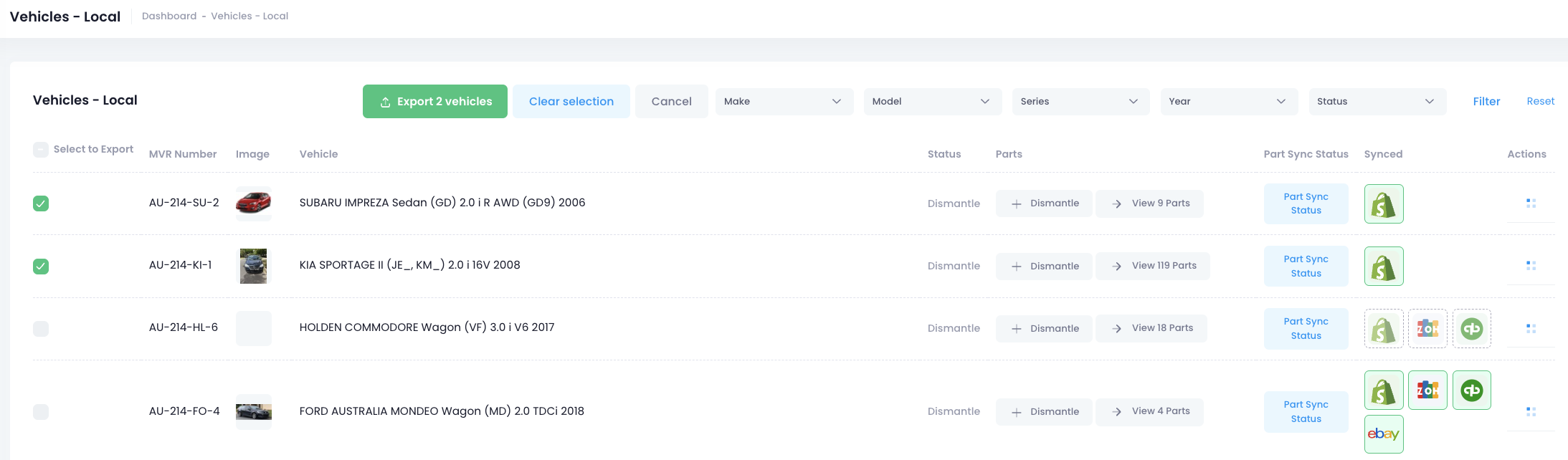
Tick the vehicles you want to export using the Select to Export checkboxes, then press Export N vehicles. Press Clear selection to untick them all, or Cancel to go back.
In the Export to Integrations window, tick the platforms you want to export to and press Export. Only integrations that are enabled and connected are listed.
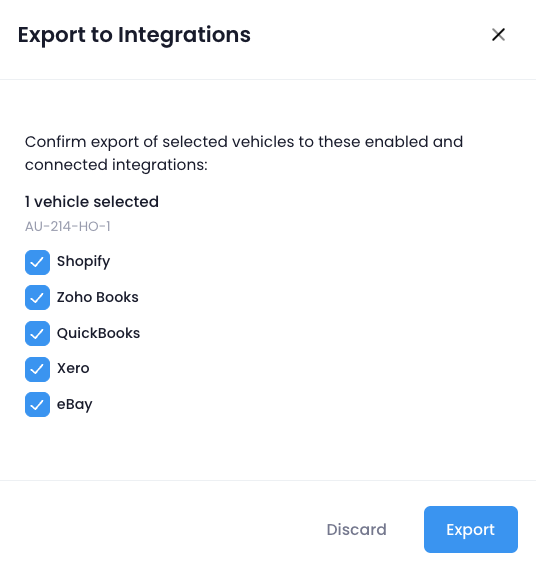
The export runs in the background, so you can keep working while your parts are sent to each platform.
What Gets Exported
- All of the vehicle's parts that are in stock are exported. Parts that are on hold or out of stock are skipped.
- Prices: Shopify, Zoho Books, QuickBooks and Xero receive each part's Retail Price. eBay receives the eBay Price, or the Retail Price if no eBay price is set.
- Images are sent to Shopify and eBay.
- Airbags and seat belts are never exported to eBay.
Parts without a price are exported with a price of $0. Use AI Pricing to price a vehicle's parts quickly before you export it.
Updating Prices and Details
Changes you make in PartsEZI aren't sent automatically. After you change a part's price, details or images, export the vehicle again. Only the parts that changed are updated on each platform.
Step 3: Check the Sync Status
The Synced column on Vehicles - Local shows which platforms a vehicle's parts have been exported to:
- Solid green border - All of the vehicle's parts have been exported to that platform.
- Dashed border - Only some of the vehicle's parts have been exported.
Hover over an icon to see how many parts have been exported.
Press Part Sync Status to see the status of each part on every platform: Exported, Pending, Failed or Not exported. You can search the list by part name or category.
Automatic Stock Updates
When a part is sold on Shopify or eBay, or an invoice is created in Zoho Books, QuickBooks or Xero, PartsEZI automatically deducts the sold quantity from your PartsEZI inventory.
The updated stock is also sent to your other connected platforms, so the same part can't be sold twice.
A few things to keep in mind:
- Draft invoices don't deduct stock. In Zoho Books and Xero, stock is only deducted once the invoice is sent or approved.
- Keep the part's SKU unchanged on each platform. PartsEZI uses the SKU to match a sale to the right part in your inventory.